

If you want more people to watch your videos to the end, the quickest win is to add captions to videos with AI. A large share of short-form video is watched with the sound off, scrolling on a phone in a queue or on a train, and a video without captions is just moving pictures to that viewer.
Captions also help people who are deaf or hard of hearing, people watching in a second language, and anyone who simply reads faster than they listen. This guide shows you how to add captions to videos with AI in seven simple steps, what to watch out for, and how a browser tool like AI Video Editing Studio does it in one click.
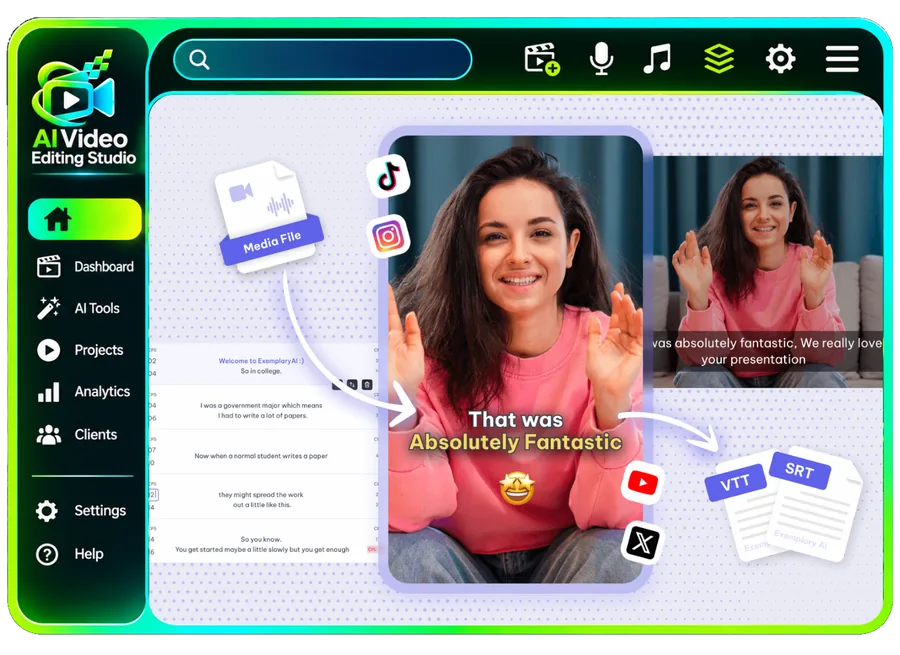
Captions, voiceover, music and background removal next to one timeline, $14.44 one time.
Check Today’s AI Video Editing Studio Price →
Not sure yet? Read our honest AI Video Editing Studio review first.
Why you should add captions to videos with AI
Captions used to mean typing every line by hand and dragging each one into place on a timeline. That is why so many creators skipped them. AI speech recognition changed the job: the software listens to your audio, writes the words and times them to your speech, and you only fix the mistakes. What used to take an hour for a ten-minute video now takes a few minutes, which is why captions have become standard on Shorts, Reels and TikTok.
The general benefits are well known, and none of them depend on a particular tool:
- Silent viewers stay: people who watch with the sound off can still follow you.
- Accessibility: closed captions and subtitles make your content usable for deaf and hard-of-hearing viewers.
- Clarity: accents, fast speech and background noise are easier to follow with words on screen.
- Retention: bold, well-timed words keep the eye on the screen in a feed full of distractions.
We will not quote a percentage for how much captions lift watch time, because it varies by niche and audience. Test it on your own channel: post similar videos with and without captions and compare.
What you need to add captions to videos with AI
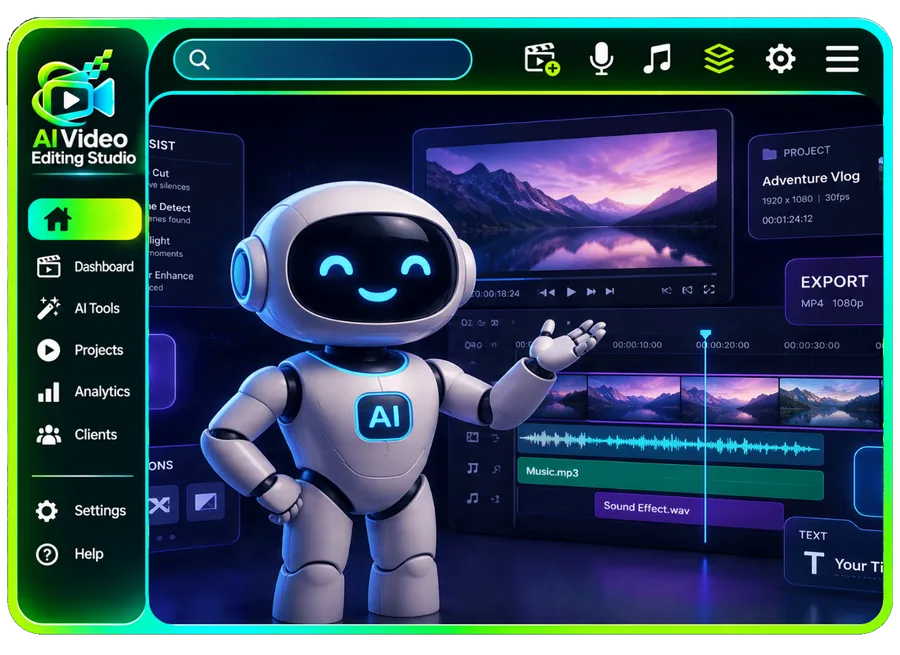
You need three things: a video with clear speech, a tool that does speech-to-text captions, and a few minutes to check the result. In AI Video Editing Studio, the caption tool sits right next to the timeline, so you do not need a separate caption app or subscription. The vendor describes it as automatic, perfectly timed captions in one click, with no typing and no manual syncing. The editor runs in a browser on Windows, Mac or a Chromebook.
How to add captions to videos with AI: 7 easy steps
These steps work in most modern AI editors. We use the workflow the vendor describes for its own tool as the example.
Step 1: Record clean audio
AI captions are only as good as the sound. Record close to the microphone, cut background noise where you can, and speak at a steady pace. A cheap clip-on mic often beats a laptop mic.
Step 2: Pick your format first
Choose vertical (9:16) for Shorts, Reels and TikTok, landscape (16:9) for YouTube, or square for some feeds. Captions sit differently in each, so set the format before you style them.
Step 3: Upload and trim
Put your clip on the timeline and cut the dead air, false starts and long pauses first. Trimming before captioning means you will not have to fix caption timing twice.
Step 4: Generate the captions
Run the auto caption tool. In AI Video Editing Studio this is one click, per the vendor. The AI writes the words and lines them up with your speech.
Step 5: Proofread every line
This is the step people skip and regret. Check names, brand names, numbers and any technical words. AI is good, but it mishears. One wrong word in a caption looks careless.
Step 6: Style for the platform
Use a large, high-contrast font, two lines at most, and keep the captions clear of the platform’s buttons and the bottom text area on vertical video. Highlighting a key word in a different color can help it land.
Step 7: Export and test on a phone
Export, then watch the video on a phone with the sound off. If you can follow it without audio, your captions are doing their job.
Mistakes to avoid when you add captions to videos with AI
- Publishing without a proofread. Mis-heard words undo the trust the captions are meant to build.
- Tiny text. If it is hard to read on a phone, it is not helping.
- Walls of words. Long lines force viewers to read instead of watch. Short chunks work better.
- Covering the action. Move captions if they hide faces, products or on-screen text.
- Burning in captions where a platform wants a file. For long YouTube videos you may also want a separate subtitle file so viewers can switch them off or translate them.
Captions plus voice: faceless videos
Once captions are easy, a whole format opens up: the faceless video. You write a script, the AI voice reads it, stock footage or AI-generated scenes fill the screen, and the captions carry the message for silent viewers.
AI Video Editing Studio puts those pieces in one place: AI voice, a stock library, an AI video generator and captions on the same timeline, plus AI music and sound effects to finish it. For channels about tips, lists, explainers or product roundups, that workflow can turn one script into a finished Short.
Which tool should you use to add captions to videos with AI?
There are many options, from built-in platform captions to dedicated caption apps and full editors. What matters most is accuracy, how easy the captions are to edit and style, and whether the tool fits the rest of your workflow. If you are already juggling a separate editor, caption app, voice app and music library, an all-in-one editor saves time and subscriptions.
AI Video Editing Studio is one such option: a browser timeline editor with AI captions, voice, background removal, music and sound effects, $14.44 one time at launch on the LaunchPad checkout (November 23, 2026), with a 30-day refund. Know that the front end has usage limits that the Unlimited upgrade removes. Our honest AI Video Editing Studio review covers the limits, every upgrade and the pros and cons. If you want an AI presenter instead of your own footage, our TalkGen AI review covers a talking-video tool.
A simple weekly routine to add captions to videos with AI
The creators who benefit most from captions are the ones who make them a habit, not a one-off. Here is a routine we suggest, our own advice rather than anything the vendor claims. Batch-record three or four short videos in one sitting. Trim them all first. Then add captions to videos with AI in one go, proofread every caption while the topic is fresh, and style them with the same font and color each time so your videos look like a series.
Keep a short list of words the AI tends to get wrong for you, such as your name, your brand and the products you mention, and check those first. Once a month, compare the watch time on captioned and uncaptioned videos.
If you decide to add captions to videos with AI on everything, that comparison tells you whether it is paying off on your channel, with your audience, rather than relying on numbers from someone else. Save your caption style as a preset or template if your editor allows it, so every new video starts ready to go.
If you also post long videos, cut two or three Shorts from each one and add captions to videos with AI on those as well. One recording then feeds several platforms, which is exactly the kind of output short-form channels reward.
FAQ: how to add captions to videos with AI
Are AI captions accurate?
Usually, with clear audio, but never perfect. Always proofread, especially names, numbers and jargon.
Should captions be burned in or a separate file?
For Shorts, Reels and TikTok, burned-in captions are the norm. For long YouTube videos, a separate subtitle file is also useful because viewers can turn it off or translate it.
How long does it take?
With an AI caption tool, generating the captions takes moments; most of your time goes on proofreading and styling.
Do captions help with search?
Captions make spoken words readable as text, which can help platforms understand your video. Results vary, so treat it as a bonus, not the main reason.
Ready when you are
Get AI Video Editing Studio and caption your videos in one click
- ✅ A full multi-track timeline editor in your browser, on Windows, Mac or Chromebook
- ✅ AI video generator, auto captions, AI voice, background remover, AI music and sound effects
- ✅ Built-in stock library, every aspect ratio and commercial use for client work
- ✅ Vendor bonuses plus MMO Maker’s own bonus pack when you buy through our links
- ✅ Coupon codes VIDEDIT35 and VIDEDIT5 listed in the vendor’s JV doc
$14.44 one time at launch (LaunchPad checkout, November 23, 2026) · 30-day money-back guarantee
The sales page says the price switches to a monthly subscription after the launch.
Get AI Video Editing Studio Now →
Read our full AI Video Editing Studio review: pros, cons, limits and every upgrade
Affiliate link: MMO Maker earns a commission if you buy, at no extra cost to you.
Read our full AI Video Editing Studio review
Browse more tools in our AI Video, Music & Image Tools category, see our guide to the best AI tools for making money online, or our guide to the best AI tools for affiliate marketing in 2026.
Disclosure: MMO Maker earns a commission if you buy AI Video Editing Studio through our links, at no extra cost to you.